
Voicemeeter vs. PairPlay: How to Connect Multiple Bluetooth Headphones Without the Extra Setup
Compare Voicemeeter with PairPlay for connecting multiple Bluetooth headphones, per-app audio routing, and low-latency audio on Windows 10 & 11.
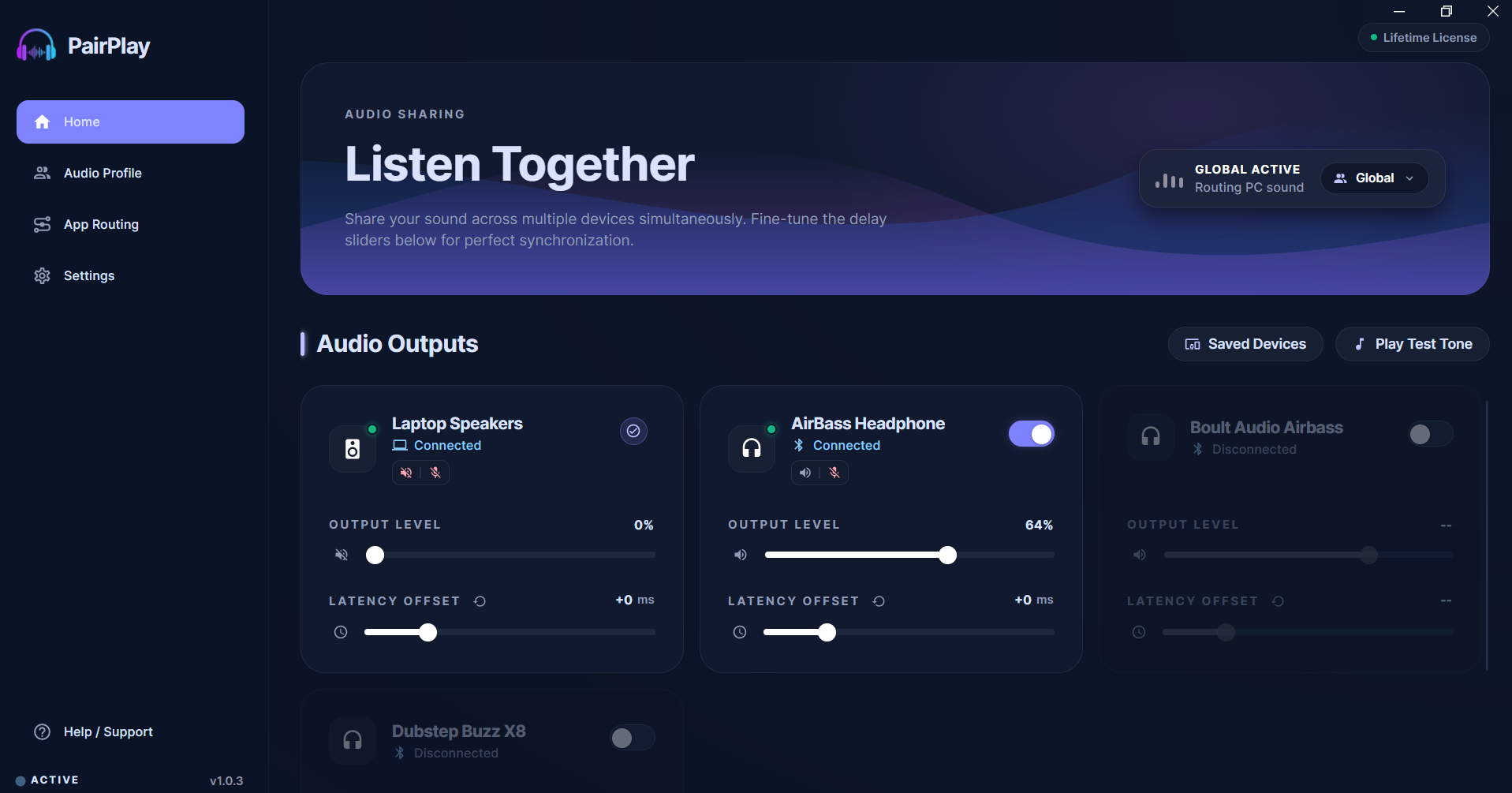
You want one PC audio stream to reach more than one set of headphones. You do not want a 30-minute setup, virtual audio cables, driver conflicts, or a messy workaround.
That search often starts with Voicemeeter. It also leads people to ask how to connect bluetooth headphones, whether you can connect multiple bluetooth headphones to one device, and what a bluetooth audio splitter really does on Windows. PairPlay addresses that exact same need on Windows 10 and 11 with a modern, driver-free approach: multi-Bluetooth streaming, per-application routing, independent per-device volume, latency offset synchronization, and a DeviceMixer bridge for two computers over local Wi‑Fi.
Virtual cable drivers, complex ASIO/WDM buffers, frequent restart engine bugs, and no Bluetooth delay offset slider.
Cuts volume by 50%, wired cables only, ground loop buzzing, and 0 support for wireless AirPods or Bluetooth headsets.
10-second setup, zero extra drivers, <0.1% CPU, millisecond latency sync, and per-app audio routing.
What People Usually Mean When They Search for Voicemeeter
A search for voicemeeter usually points to one fundamental problem: the user wants to send Windows audio somewhere specific without losing control.
Sometimes the goal is straightforward: one laptop, two pairs of Bluetooth headphones, and a shared Netflix movie on an airplane or couch. Other times it is more technical: PC game audio routed to a gaming headset, Spotify or a YouTube tutorial routed to secondary speakers, and a work microphone kept completely isolated from background desktop noise.
That is why a Voicemeeter search pulls in a whole constellation of related queries:
- How to connect bluetooth headphones on Windows 10 and 11 simultaneously
- Can you connect multiple bluetooth headphones to one device without hardware splitters
- Whether a bluetooth audio splitter or wireless headphone splitter can do the job
- How to configure multiple audio outputs with independent volume control
- What audio routing software windows provides the lowest latency and CPU overhead
PairPlay fits that exact intent on Windows. It streams system audio to multiple Bluetooth headphones and speakers simultaneously. It also gives you per-device volume sliders and per-application routing, keeping your audio layout organized and frustration-free.
Why the Audio Routing Search Space Gets Confusing
The terms sound similar, but users' daily needs are not identical:
- Some people want shared listening (watching movies or listening to music together).
- Some want multiple outputs in the same room (e.g. desktop monitors + wireless headset).
- Some need mic isolation for Discord or Microsoft Teams while gaming.
- Some want audio to move between two computers over local Wi‑Fi without swapping headsets.
The result is a crowded comparison space. Voicemeeter (Standard, Banana, Potato), EarTrumpet, Avantree hardware transmitters, Rogue Amoeba’s Airfoil & Loopback (macOS only), and PairPlay all appear for different reasons. The right choice depends entirely on the route you want audio to take—and how much configuration headache you are willing to endure.
How to Connect Bluetooth Headphones on Windows, Without Turning It Into a Project
A basic Bluetooth connection is simple: Windows pairs a single headset in a few clicks. But connecting two or more Bluetooth headphones for shared playback is where Windows falls short. By default, Windows locks system audio to a single default playback endpoint.
That is why many users search for a bluetooth audio splitter or download Voicemeeter. But setting up Voicemeeter requires installing virtual audio cables (VAC), changing default sound control panel devices, configuring hardware inputs (A1, A2, A3), and constantly adjusting buffer sizes between WDM, MME, and ASIO drivers.
PairPlay eliminates all of that friction. It is purpose-built for fast desktop routing with zero extra virtual drivers and less than 0.1% CPU usage—keeping your laptop completely responsive during gaming, work, or media playback.
How to Connect Multiple Bluetooth Headphones with PairPlay
What PairPlay Changes
PairPlay does not try to be a bloated virtual mixing board. It focuses purely on intuitive desktop audio routing:
- Multi-Bluetooth streaming: Sends crisp system audio to two, three, or more headphones or speakers at once.
- Independent per-device volume: Gives each listener their own level without altering the master PC volume.
- Latency offset synchronization: Lets you dial in millisecond buffer delays (+ms) to compensate across different brands so sound arrives in perfect sync.
- Preset audio profiles & 1-click routing: Save configurations for movie nights, gaming, or office work and restore them instantly.
Can You Connect Multiple Bluetooth Headphones to One Device?
Yes, absolutely. That is the exact question behind thousands of searches every month.
The real issue is not whether it is technically possible—it is how much control you have once the sound starts playing. A basic hardware splitter duplicates audio, but forces both listeners to share the exact same volume level and cannot connect wireless Bluetooth devices.
PairPlay gives you the granular control layer you actually need:
Watch Netflix, YouTube, or VLC together on one laptop without waking roommates or kids. Independent volume lets each person set their ideal level.
Route game audio to two headsets simultaneously with zero lip-sync delay, allowing friends to hear game footsteps and cues in perfect sync.
Route Microsoft Teams or Zoom to your primary work headset while background music or videos stream to secondary headphones or speakers.
Dedicate your microphone strictly to your conference call so other PC applications never capture voice crosstalk.
Why Voicemeeter Comes Up in the Same Search (And Where It Breaks Down)
Voicemeeter is well-known because it was one of the earliest tools for virtual audio routing on Windows. But anyone who has actually used Voicemeeter knows the reality: it feels like operating an airplane cockpit when all you wanted was to connect two pairs of headphones.
The most common issues users face with Voicemeeter include:
- Driver Installation Hazards: Requires installing Virtual Audio Cables (VAC) that can mess up Windows default audio devices and cause other software to lose sound.
- Buffer & Driver Mismatches: Juggling ASIO, WDM, MME, and KS drivers results in robot voices, stuttering, and crackling audio.
- The “Restart Audio Engine” Loop: Whenever a Bluetooth device disconnects or reconnects, Voicemeeter freezes output until you open the menu and manually restart the engine.
- No Dedicated Bluetooth Delay Offset: Voicemeeter does not offer a simple millisecond slider to compensate for wireless buffer delays between different headphone models.
PairPlay takes that frustration away. It installs in seconds from the Microsoft Store, operates completely driver-free, and handles Bluetooth reconnections seamlessly in the background.
Feature Breakdown: Voicemeeter vs. PairPlay vs. Hardware Splitters
| Capability | PairPlay | Voicemeeter | Hardware Splitter | Windows Default |
|---|---|---|---|---|
| Multi-Bluetooth Streaming | Yes (1-click toggle) | Complex (A1/A2 routing) | No (wired only) | No (locks to 1) |
| Independent Volume Sliders | Yes (per device) | Yes (hardware faders) | No (shared level) | No |
| Bluetooth Latency Offset (+ms) | Yes (millisecond slider) | No (complex buffer tweak) | No | No |
| Per-Application Audio Routing | Yes (built-in) | Requires extra VAC cables | No | Basic Windows Mixer |
| Cross-PC Wi-Fi Bridge (DeviceMixer) | Yes (~3ms Wi-Fi) | VBAN (complex networking) | Hardware mixer only | No |
| Setup Time | 10 seconds | 20–45 minutes | Plug in cables | N/A |
| CPU & System Overhead | <0.1% CPU | Moderate (engine overhead) | Zero (passive) | Zero |
| Wireless Earbuds (AirPods, Galaxy) | 100% Compatible | Often stutters | Incompatible | Single device only |
What DeviceMixer Adds When One PC Is Not Enough
Sometimes the audio problem is bigger than a single computer. Perhaps your work laptop has a Zoom or Teams meeting, but your desktop PC has your Spotify playlist, Discord call, or game audio. Or you want to stream and mix audio between two computers over local Wi‑Fi without physical cables or hardware mixers.
That is where DeviceMixer comes in. DeviceMixer acts as a cross-device audio bridge for streaming and mixing audio between two computers over local Wi‑Fi with ultra-low latency (~3ms).
With DeviceMixer, you can:
- Listen to both your work laptop and gaming PC through a single pair of Bluetooth headphones.
- Split audio channels across ears (e.g. Work PC in left ear, Personal PC in right ear).
- Mix audio digitally over your home Wi-Fi network without ground loop electrical hum.
- Eliminate the need for bulky \$150 physical desktop mixers or ground loop isolators.
What Makes PairPlay Different From a Basic Bluetooth Audio Splitter
A bluetooth audio splitter sounds simple in theory. But in practice, physical audio splitters introduce massive compromises:
- 50% Volume Cut: Passive 3.5mm Y-splitters split the electrical current in half, leaving audio quiet and muffled.
- Ground Loop Buzzing: When two devices share a physical line on mains power, a loud 60Hz electrical hum ruins the sound.
- Incompatible with Wireless Headphones: Physical splitters only accept wired 3.5mm plugs. They cannot connect Apple AirPods, Bose 700, Sony WH-1000XM4/XM5, or Bluetooth speakers.
PairPlay is intelligent desktop audio routing software, not just a dumb audio duplicator. It creates distinct digital audio streams for each connected output, providing pristine audio fidelity, zero signal loss, and individual volume management.
5 Questions to Ask Before Choosing an Audio Routing Tool
Before spending money on hardware dongles or struggling with complicated mixer software, ask yourself these 5 questions:
If your answer is yes to several of those, PairPlay is built specifically for your workflow.
Frequently Asked Questions (FAQ)
How do I connect multiple Bluetooth headphones to one laptop or PC?
Is PairPlay better and easier to use than Voicemeeter?
Can I adjust the volume independently for each pair of headphones?
How do I fix audio delay or lip-sync issues when using two Bluetooth headphones?
Does PairPlay support Windows 10 and Windows 11?
Related Audio Guides & Resources
Ready to Upgrade Your Windows 11 Audio?
Download PairPlay today to eliminate Bluetooth lag, route applications, and connect multiple headphones with 100% sync.
Download Free 7-Day Trial