
How to Connect Two Bluetooth Headphones to Windows 11 Simultaneously (Step-by-Step)
Stream synchronized, lag-free audio to two (or more) pairs of Bluetooth headphones on your Windows 11 PC without messy cables.
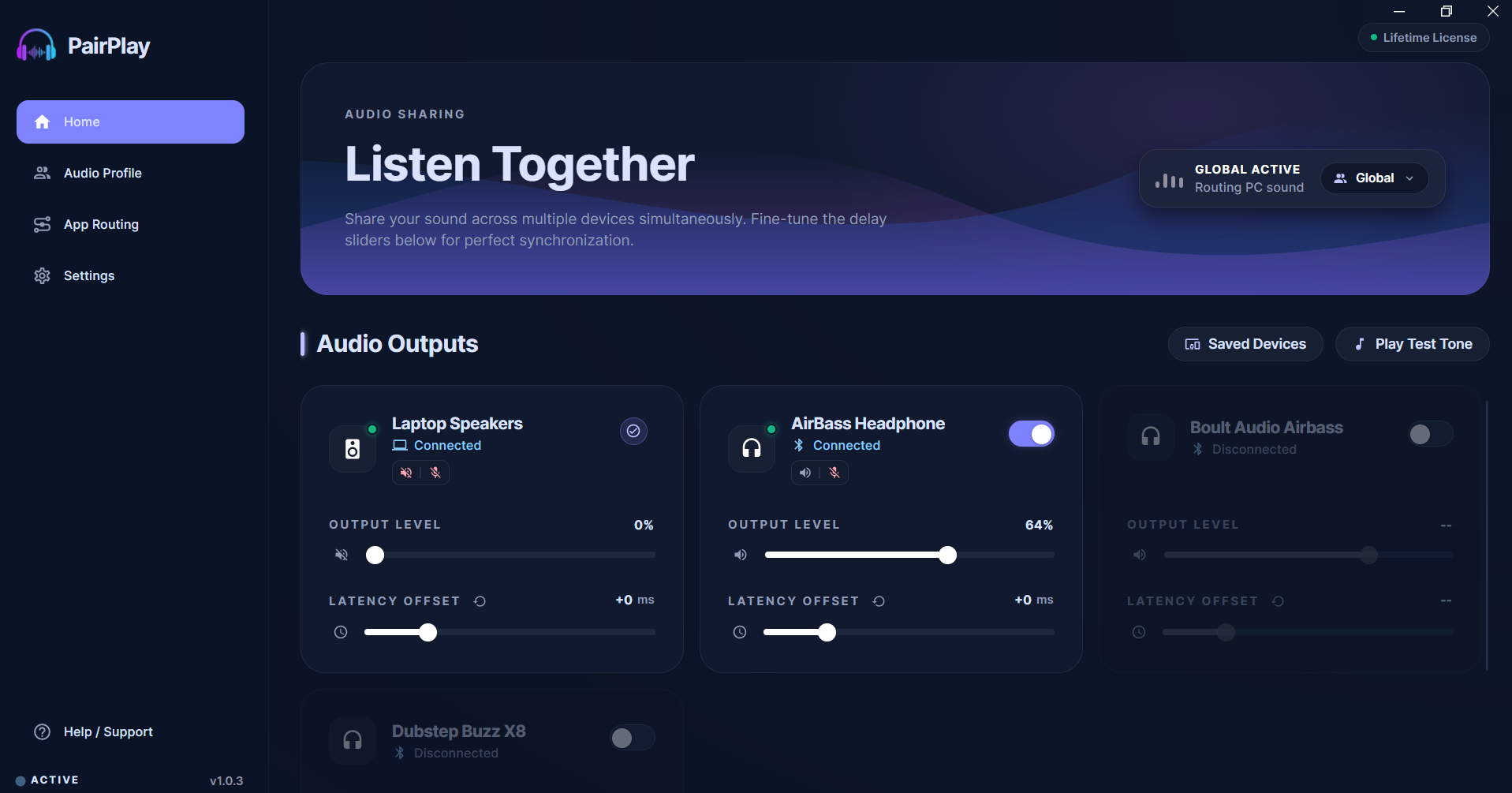
Have you ever tried watching a movie or sharing a playlist on your Windows laptop with a friend, only to realize Windows will only play audio through one pair of Bluetooth headphones at a time?
Unlike modern smartphones that feature native dual audio (like Samsung Dual Audio or Apple SharePlay), Windows 11 locks system audio to a single default playback endpoint. If you connect a second pair of wireless earbuds, Windows automatically silences the first.
In this guide, we’ll break down why Windows does this and show you the 3 practical ways to stream crystal-clear audio to two (or more) Bluetooth headphones simultaneously with zero lip-sync delay.
Why Doesn't Windows 11 Support Dual Bluetooth Audio by Default?
Windows processes sound using the Windows Audio Session API (WASAPI). By design, WASAPI creates an exclusive master audio pipeline that streams to one active default hardware device.
The bigger challenge is Bluetooth hardware latency. Different headphone models (e.g., Apple AirPods Max vs. Sony WH-1000XM5 vs. Bose QuietComfort) decode wireless audio with different buffer sizes and codecs (AAC vs. SBC vs. LDAC):
If you route audio to two Bluetooth headsets without millisecond latency compensation, one device will always lag 40ms to 80ms behind the other. This creates a disorienting echo effect that makes watching movies or gaming together practically impossible.
The 3 Ways to Play Audio on Two Headphones in Windows 11
The Modern 1-Click Solution: PairPlay
PairPlay is dedicated desktop audio routing software built specifically for Windows 10 and Windows 11. It hooks directly into the Windows audio pipeline to stream to unlimited Bluetooth headphones, soundbars, and wired devices with independent volume sliders and millisecond sync.
Step-by-Step Instructions:
Instant Windows 10 & 11 setup · No credit card required
Method 2: The Virtual Mixer Workaround (Voicemeeter Banana)
Voicemeeter is a free donationware virtual audio mixer that routes Windows sound through software cables:
- Download and install Voicemeeter Banana from VB-Audio.
- Reboot your PC to register the virtual audio kernel drivers.
- Open Windows Sound Settings and set Voicemeeter Input (VB-Audio VoiceMeeter VAIO) as default.
- In the Voicemeeter window, assign Hardware Out A1 to Headphone #1 (WDM) and Hardware Out A2 to Headphone #2 (MME).
- No Bluetooth delay compensation: Cannot sync different headphone buffer latencies.
- High CPU overhead: Consumes 3% to 6% CPU constantly.
- Complex UI: Overwhelming studio mixing console with frequent driver crashes.
Method 3: Hardware Bluetooth USB Transmitter Dongle
If you prefer a physical adapter, you can purchase an external dual-Bluetooth USB dongle (such as Avantree Dual Link):
- Plugs into your laptop USB port and presents itself as a single sound device to Windows.
- Pairs directly to two headphones using physical buttons on the dongle.
- Costs $35 to $60 extra.
- Occupies a physical USB-A/USB-C port and requires carrying extra hardware.
- Cannot adjust individual volume levels on PC for each listener.
Popular Dual Audio Scenarios on Windows 11
Watch movies together on laptops during flights or late at night without disturbing others around you.
Share high-FPS game audio with a teammate sitting next to you while maintaining separate, optimal volumes.
Mix AirPods with Sony, Bose, Galaxy Buds, or wired speakers — PairPlay compensates for each device's lag.
Frequently Asked Questions (FAQ)
Can I connect Apple AirPods and Sony headphones together on PC?
Does dual Bluetooth audio drain more laptop battery?
Can I route Discord to my headphones and game audio to both?
Is PairPlay compatible with Windows 10 and Windows 11?
Summary: Start Streaming Dual Audio in Under 1 Minute
Sharing sound on a Windows PC shouldn't require tangled audio splitters or confusing virtual mixers. PairPlay gives you clean, modern dual-headphone listening with independent volume control and flawless lip-sync synchronization.
Ready to Upgrade Your Windows 11 Audio?
Download PairPlay today to eliminate Bluetooth lag, route applications, and connect multiple headphones with 100% sync.
Download Free 7-Day Trial