
How to Route Teams Meetings to One Headphone and Chrome to Another on Windows 11
Isolate Microsoft Teams / Zoom calls to your meeting headset while routing Google Chrome, Spotify, and game audio to separate headphones or speakers with dedicated mic isolation.
Have you ever needed to attend a Microsoft Teams or Zoom work call in your call headset, while simultaneously watching a Google Chrome video, tutorial, or listening to music in your second pair of headphones without them clashing?
By default, Windows 11 routes every single sound through one default playback device. When you're in a meeting, sudden YouTube playback or game sound effects blast through your call—and worse, your microphone might broadcast your background entertainment to your entire company!
In this guide, we'll show you how to route Microsoft Teams to one headphone with dedicated microphone isolation, and send Google Chrome, Spotify, or PC gaming audio to a completely separate output.
The Problem: Windows Combines Call Voices & Media Sound
Windows treats all applications equally unless explicitly configured. While Windows 11 has a basic volume mixer in Settings, it fails in daily work and gaming setups:
- Audio Bleed & Echo: Browser videos or game gunshots play directly into your ears while colleagues speak on Teams.
- Mic Leakage: Windows often uses a shared default mic, accidentally capturing your background YouTube video or Spotify playlist for your meeting attendees.
- Forgotten Settings: Unplugging a Bluetooth dongle or rebooting Windows resets all manual application output choices.
Step-by-Step: Route Teams to Headphone 1 & Chrome / Games to Headphone 2
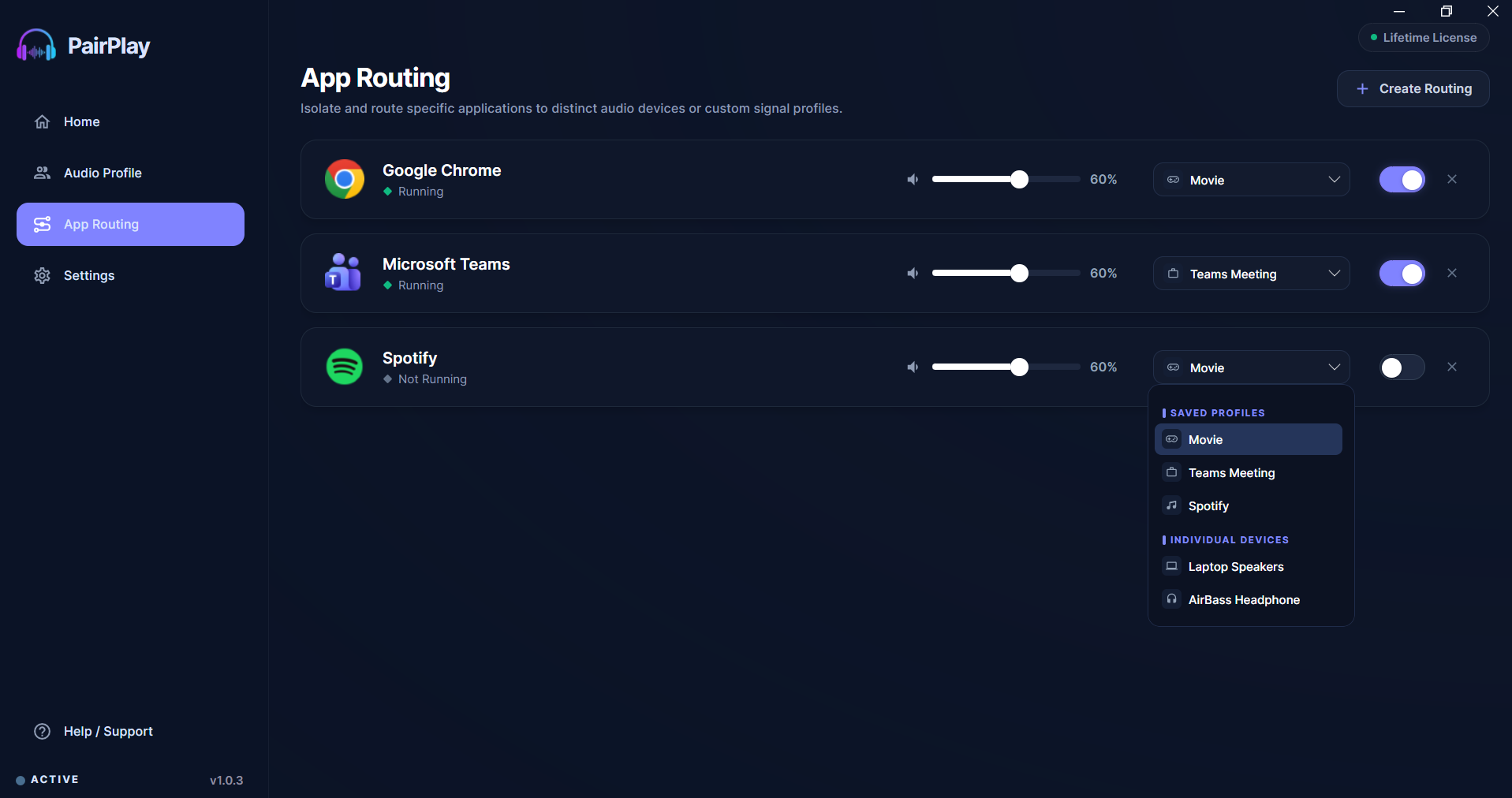
PairPlay App Routing Engine
PairPlay provides an intuitive App Routing panel designed to isolate and route applications (Microsoft Teams, Google Chrome, Spotify, Steam games) to separate output hardware and isolate your microphone input.
Make sure the applications you want to route (e.g. Microsoft Teams, Google Chrome, Spotify, or your Game) are actively opened and running in the background before configuring the routing so PairPlay can instantly detect their active audio streams.
Follow These Simple Steps:
Instant Windows 10 & 11 setup · No credit card required
Real-World Work, Gaming & Entertainment Scenarios
Keep client meetings crisp in your headset ear while playing reference YouTube videos in desktop speakers or second headphones.
Route high-FPS game footsteps to your surround headset while Discord chat and Spotify background music route to your wireless earbuds.
Lock your high-quality condenser mic to Teams or Discord while keeping the rest of your system audio completely muted from the mic channel.
Frequently Asked Questions (FAQ)
Can I route Microsoft Teams to my headset and Google Chrome video to speakers?
Can I use a separate microphone for Teams calls and another for gaming?
Can I send one application (like a movie) to two headphones simultaneously?
Does PairPlay cause any performance drop during gaming or streaming?
Summary: Master Your Soundstage in Seconds
Isolating audio across work meetings, browser videos, and gaming headsets doesn't require bulky audio mixers or confusing virtual drivers. PairPlay gives you clean, persistent per-app routing with dedicated mic control on Windows 11.
Ready to Upgrade Your Windows 11 Audio?
Download PairPlay today to eliminate Bluetooth lag, route applications, and connect multiple headphones with 100% sync.
Download Free 7-Day Trial