
How to Listen to Two Laptops Through One Headphone on Windows 11 (Zero Hardware)
Stop swapping headsets between your work and personal PC. Learn how to stream and mix audio between two computers over local Wi-Fi with zero lag.
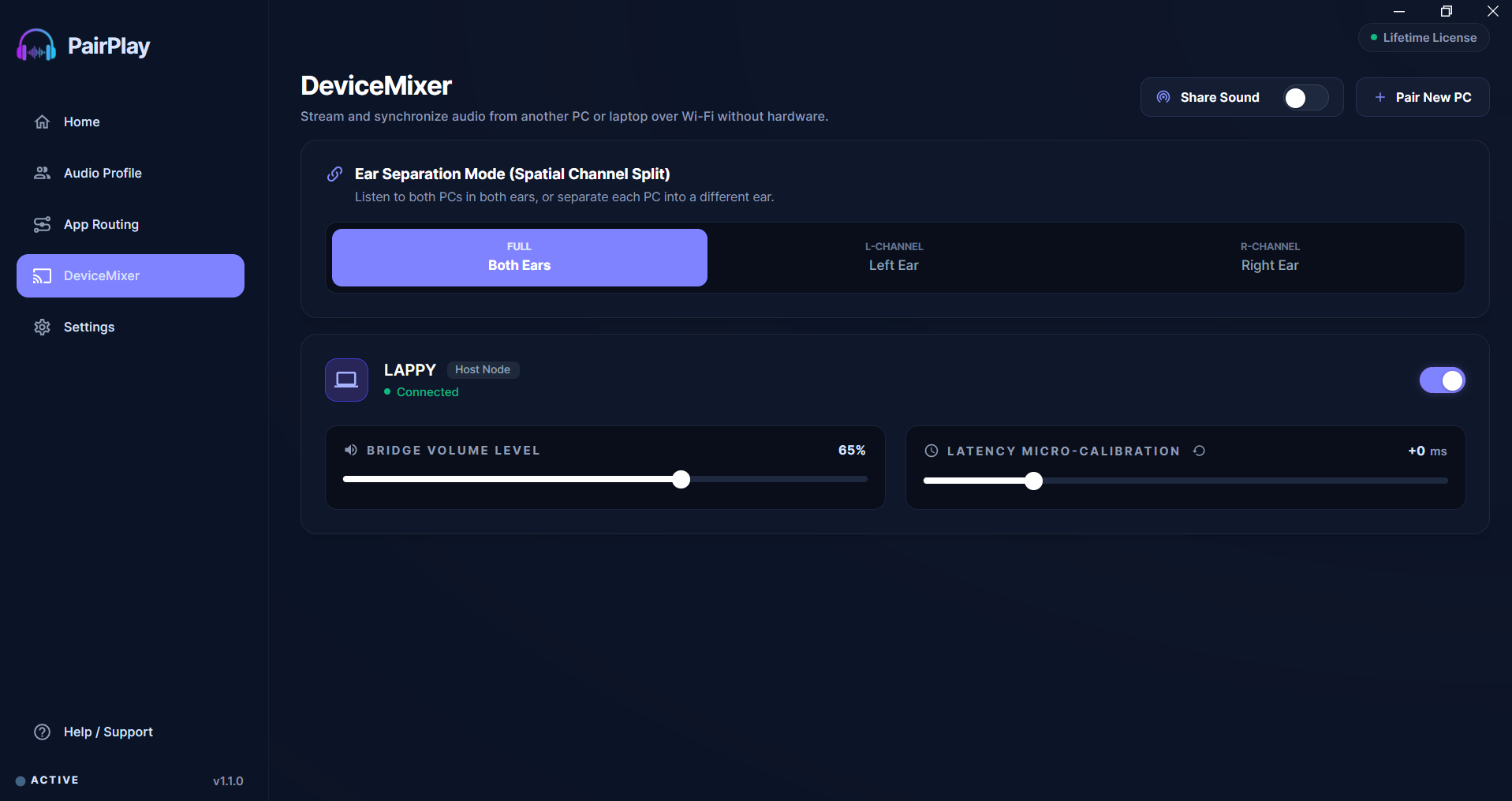
Have you ever sat at your desk with a corporate work laptop on one side and your personal PC on the other, wishing you could listen to both through your favorite wireless headphones or AirPods without swapping connections?
In today's remote and hybrid setups, millions of professionals juggle two machines: a company laptop for Microsoft Teams, Slack huddles, and meetings, and a personal PC for Spotify, YouTube tutorials, and gaming.
The problem? Windows locks audio to one computer per headset. In this guide, we'll explain why Bluetooth Multipoint and splitters fail, and show you how to stream and mix sound between two computers over local Wi-Fi with ~3ms latency and zero cables using PairPlay DeviceMixer.
Why Conventional Dual-PC Audio Workarounds Fail
Before software audio bridges existed, users relied on three frustrating workarounds:
- Bluetooth Multipoint is an Auto-Switcher, NOT a Mixer: Multipoint pauses one machine the moment the other makes a sound. You cannot hear both simultaneously, and Apple AirPods do not support Multipoint on Windows.
- 3.5mm Aux Y-Splitters Cause Ground Buzz: Merging two headphone jacks shorts internal DACs, creating a loud 50Hz/60Hz ground-loop electrical hum and severe mono distortion.
- Hardware Mixers ($150–$250) Clutter Desks: Bulky physical mixers require 4+ wires, power bricks, and ground isolators, and cannot transmit to wireless AirPods or Bluetooth headsets.
Method 1 · Recommended: PairPlay DeviceMixer (Zero Hardware)
PairPlay DeviceMixer 2.0
PairPlay DeviceMixer streams high-fidelity digital audio between two computers over your local Wi-Fi or Wi-Fi Direct network with imperceptible ~3ms UDP latency and spatial ear separation.
Ensure both laptops are connected to the same local Wi-Fi network (5GHz recommended) or linked via Windows Wi-Fi Direct.
Follow These Simple Steps:
Instant Windows 10 & 11 setup · No credit card required
Method 2: Physical Hardware Mixers ($150–$250)
Studio audio mixers (Yamaha MG06, GoXLR, or USB audio interfaces) accept physical cables from both machines and blend the analog signals together.
Advantage: Reliable analog mixing with tactile volume knobs.
Drawbacks: Clutters your desk with 4+ cables and power adapters, requires ground-loop isolators to prevent buzzing, and cannot output to wireless Bluetooth headphones or AirPods without bulky transmitters.
Method 3: Bluetooth Multipoint Switching
Some premium headphones (Sony WH-1000XM5, Bose QC45) support Bluetooth Multipoint, allowing connection to two devices simultaneously.
Advantage: Built into select headphone hardware.
Drawbacks: Strictly an exclusive auto-switcher. It pauses one machine whenever the other plays audio, making simultaneous listening impossible. AirPods do not support Multipoint on Windows.
Frequently Asked Questions (FAQ)
Can I talk on my work laptop microphone while listening to my personal PC?
Does this work with Apple AirPods and AirPods Pro on Windows?
Does DeviceMixer consume my internet bandwidth or lag my Wi-Fi?
What if my corporate work laptop restricts administrative driver installations?
Can I balance or mute each computer independently?
Summary: Unify Your Dual-Laptop Desk Audio
You don't have to suffer through swapping headphones or buying bulky physical mixers to manage your work and personal computers. Download PairPlay to enable DeviceMixer 2.0, connect two laptops to one headphone over local Wi-Fi, and enjoy seamless, clutter-free sound all day.
Ready to Upgrade Your Windows 11 Audio?
Download PairPlay today to eliminate Bluetooth lag, route applications, and connect multiple headphones with 100% sync.
Download Free 7-Day Trial